


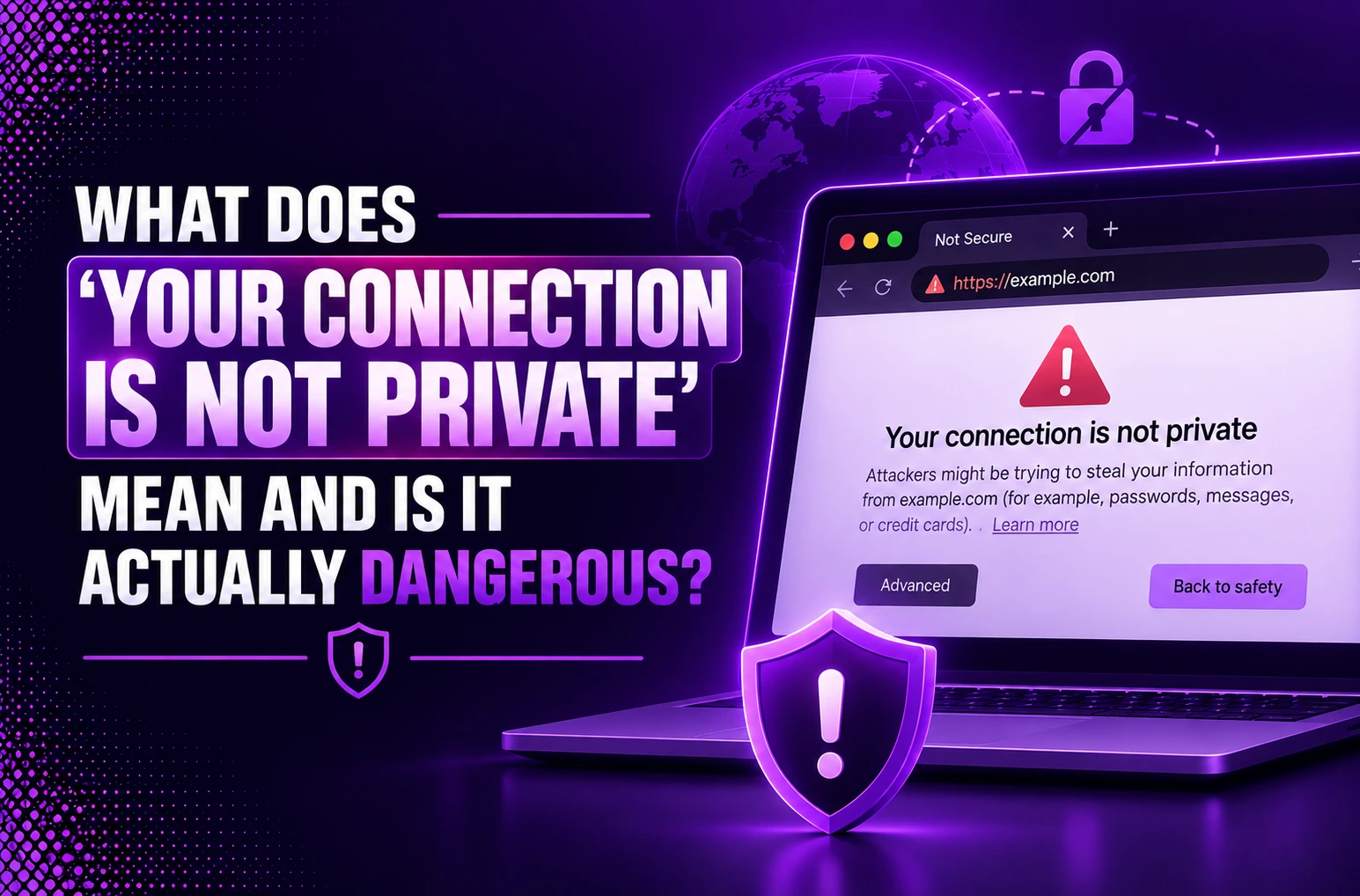
“Your Connection Is Not Private” means your browser did not establish a secure communication and did not verify its authenticity with the website. Not all the time it means that someone has hacked the site. It has a few common causes: An expired certificate, an incorrect device clock, an outdated browser or a problematic network connection. Failing to process the message should not be done automatically, however. With a valid HTTPS connection, information like passwords, payment details, and personal messages that is shared between your device and a website is better protected. Digital certificates and trusted certificate authorities are used to verify the connection of the site on the correct domain. This will help you to understand the meaning of the warning, why it displays and when it could be a real threat, and how to handle it safely.
Why You See the “Your Connection Is Not Private” Warning
The warning message is displayed when a browser is unable to check a security certificate of a website. The certificate may be expired, set up incorrectly, be for a different domain, or have been signed by a trusted certifying authority that your browser isn’t authorized to recognize.
You may also see the warning if your computer displays the incorrect date and time, you were required to sign in to your public wi-fi network, or if a browser extension is blocking the secure connection.
What Does “Your Connection Is Not Private” Mean?
Understanding the Your Connection Is Not Private Error
Your connection is not private means that your browser is unable to confirm that the website security hasn’t been compromised and is not a threat to your computer and your data.
This mistake can be made on any internet web-connected devices – computer, smartphone, tablet. Google Chrome uses this specific language, but other browsers may show a similar warning, e.g., “your connection is not secure.
How HTTPS Keeps Your Connection Secure
Secure Hypertext Transfer Protocol (HTTPS) is a secure version of the hypertext transfer protocol (HTTP), the main protocol of the Web browsers. HTTPS is a more secure version of HTTP since it encrypts data as it is being transferred. This is especially critical when a user logs into an online bank account, email or health insurance provider and sends private information.
Why Browsers Block Potentially Unsafe Websites
The browser is designed to protect the surfers from potential dangers such as malware, phishing attacks and data breach by blocking potentially unsafe websites. There are security measures used in them like verifying the HTTPS connection to ensure data encryption and prevent the collection of personal data. The tools will, in addition, warn us of harmful stuff like when we are about to visit pages suspectedly dangerous to access; malicious content displayed on a web page. It also blocks sites or blocked download/pop-up etc.
The synergy of an integrated set of features and user behaviors bolsters the safety of the web in general, supporting the prevention of exposure to online hazards.
What Causes the “Your Connection Is Not Private” Error?

Common Browser Error Codes You May See
| Category | Common Browser Error Code | What It Means |
| Client Error (4xx) | 400 Bad Request | The browser sends a request with invalid syntax, so the server cannot process it. |
| 401 Unauthorized | The requested page or resource requires authentication or valid login credentials. | |
| 403 Forbidden | The server understands the request but refuses to grant access due to insufficient permissions. | |
| 404 Not Found | The requested webpage or resource cannot be found on the server. | |
| 408 Request Timeout | The browser takes too long to send the request, causing the server to time out. | |
| 429 Too Many Requests | The browser or application has sent too many requests in a short period and has exceeded the server’s rate limit. | |
| Server Error (5xx) | 500 Internal Server Error | The server encounters an unexpected issue and cannot complete the request. |
| 502 Bad Gateway | A gateway or proxy server receives an invalid response from the upstream server. | |
| 503 Service Unavailable | The server is temporarily unavailable because it is overloaded or undergoing maintenance. | |
| 504 Gateway Timeout | A gateway or proxy server does not receive a timely response from the upstream server. |
NET::ERR_CERT_AUTHORITY_INVALID
This error indicates your web browser does not have trust over the Certificate Authority (CA) which have issued an SSL/TLS certificate for this particular website. The web browser disables the connection with a website to prevent access to your private data
Is “Your Connection Is Not Private” Dangerous?
When the Warning Indicates a Real Security Risk
If it is raised on a financial website like a bank, a shopping site, an email account, or even on a social network, then this warning should be taken seriously. It could be a redirect, the domain name might be dubious, or there could be a serious certificate issue. Never give out your password, card number or personal details.
Situations Where It May Be a Temporary Browser Issue
If it is mentioned on just one device in this case, if there is no problem after fixing the clock, or if it appears on an open Wi-Fi connection, after logging in, then the problem may not be permanent. It may be an out-of-date browser; or it may be a security program that is not compatible with that particular browser.
Risks of Ignoring Browser Security Warnings
When you click through you may risk exposing your information to interception or revealing it to an impersonating website. If the page might appear to be familiar, do not type until you have confirmed that the domain is correct and why the warning message has appeared.
How to Fix the “Your Connection Is Not Private” Error
1. Refresh your page: The first thing to do when faced with “Your connection is not private” is simply refresh the page by pressing the refresh button or F5 on PC. Use Crtl + F5 or Ctrl + Shift + R for a hard refresh or Cmd + R or Shift+Cmd+ R for a hard refresh on Mac.
2. Check your address: The cause of the mistake can be a typing one-a wrong website address put into search field,-or just adding “s” for an SSL secured one to have made a missed one. Just make sure address starts with “https”, regardless will have to use caution, it may be a bad security web site.
3. Test connection: If Wi-Fi is weak, the secure connection might fail to occur. If using home Wi-Fi, try moving closer to the router, or restarting the router. If you are using public Wi-Fi, try connecting to a different network, or use a VPN to encrypt your connection.
4. Use a different network: If the web page does not work well on a specific network then the problem may be that one. May try other Wi-Fi networks, especially for the mobile phone it may just solve your issue, if you are able to access on another one. The first one probably is not ok. But again there’s nothing as risky as using a public Wi-Fi at random.
5. Try disabling the VPN: Most of the time, this will solve your error. In fact, it does if you try it on your phone as often VPNs have a conflict between themselves and SSL. It may just be a VPN interfering with obtaining a secured web connection. Since you will be able to fetch the required webpage, do not forget to switch your VPN back on again.
How Website Owners Can Resolve SSL Certificate Issues
1. Check your SSL installation
The very first step is to test if your SSL installation is valid and the certificate has been correctly implemented by using an SSL checker. This indicates you the expiry date of the certificate and the owner of your SSL certificate. If something goes wrong then it will display how to fix your connection is not private.
2. Renew/ reissue your SSL certificate
Expiration of your SSL certificate will cause an “ERRCERTDATE_INVALID” error on your website. In order to fix it, log to your hosting control panel, specify the concerned domain name, generate a CSR and renew or reissue the certificate and install the updated certificate then check again that the installation is OK.
3. Issue in mismatch domain cases
Your certificate should cover all domain name variations including the www. The non-www, and subdomains if needed. Setup redirects or use SAN/wild card certificates.
4. Install the intermediate certificates
If not installing intermediate certificates, warning will appear when the user visit your website, because the browser will not trust SSL certificate. Make sure you install the correct intermediate certificates from the SSL provider that issued your certificate to complete your trust chain.
5. Issue in mixed contents cases
Solve mixed contents issue by upgrading or rewriting all HTTP resource in HTTPS by using an on-line tool or a plugin. It’s vital to take a backup of your database before performing any modification.
6. Upgrade hosting or server configuration
An outdated server configuration might be causing this and adjusting the server configuration or getting a better hosting service might help fix SSL issues. Mostly because the system needs minimum servers to avoid issues of misconfiguration and SSL Protocol.
Understanding Browser Security Certificates
What Is a Security Certificate?
A security certificate is a small piece of data that verifies that a website or a web application is authentic, reliable and identifies the site or application. It contains details of the certified company, their verified details and website details.
How Browsers Verify Website Identity
They prevent website from spoofing of the domain and other such attacks, as the client connects directly to the authenticated server(the domain holder) and not to any other entity who claims to be holder of the particular domain.
Why Trusted Certificate Authorities Matter
However, beyond securing websites the Trusted Certificate Authorities have beneficial influence on search engines rankings. Though it might be a small effect, search engines like Google favour secure sites in their ranking; they even appreciate the use of an HTTPS certificate, particularly when everything else is equal.
Best Practices to Stay Safe When You See This Warning

Common Myths About the “Your Connection Is Not Private” Error
Myth: The website is actually trying to steal something.
Reality: Most of the time this warning is due to a simple local problem, like a wrongly set system clock, your browser’s stored data, or an anti-virus that is too sensitive.
Myth: the error is due to a faulty server.
Reality: It could indeed be that the certificate is not valid or has expired but it can simply be due to your local network or computer settings not being able to process the certificate.
Myth: It is safe to bypass the security warning if I trust the website.
Reality: Doing so will result in your private data potentially being intercepted as long as there isn’t a secure way for your device to check the certificates, and there isn’t when you are shown that warning.
Conclusion
This is a ‘Your Connection Is Not Private‘ warning that users must click through. “Your Connection Is Not Private” message is a protective browser message, not an automatic warning of danger. This indicates that your browser is not able to check the certificate of the website, or can’t connect to a website that is not considered trustworthy. When you’re visiting a banking, shopping, email or login site, treat the warning when you see it seriously. Verify the URL, set date and time correctly on your device, switch to another network, update your browser and do not type in sensitive information until the problem is gone. If the warning is issued by a website you own, renew and proper install the certificate and configure HTTPS security warning throughout the site and test. The best way to do this is to simply not navigate past the warning even if the page seems familiar. Before taking other measures, first check if the website, device, browser or the network is responsible for the issue.
Frequently Asked Questions
Q1. What does “Your Connection Is Not Private” mean?
“Your connection is not private” is an error message that appears when your Web browser is unable to determine that a website is secure.
Q2. Why does Chrome show this privacy error?
This occurs when a problem with the SSL certificate of a site is detected, or when your device cannot verify the site’s identity safely. Then a “Your connection is not private” message displays as privacy error in Chrome.
Q3. How do I fix an SSL certificate error?
Correct the date and time settings of your device is the first step to rectifying any SSL certificate error – this is the usual cause of browsers not being able to validate certificates. The steps to fix the error vary depending on if you are on the website or you own the site.
Q4. Is it safe to bypass the warning?
In most cases, no, it is not an OK thing to ignore browser security warnings.
Q5. Can public Wi-Fi cause this error?
Absolutely, when you use public Wi-Fi you may set up many common network and connection failures along with various security issues.

Leave a Reply